

App Configuration
Switch to App Configuration view using the
icon in the main menu.
The App Configuration view allows you to configure your app settings and preferences. It’s a visual editor for your app’s Expo app.json file.
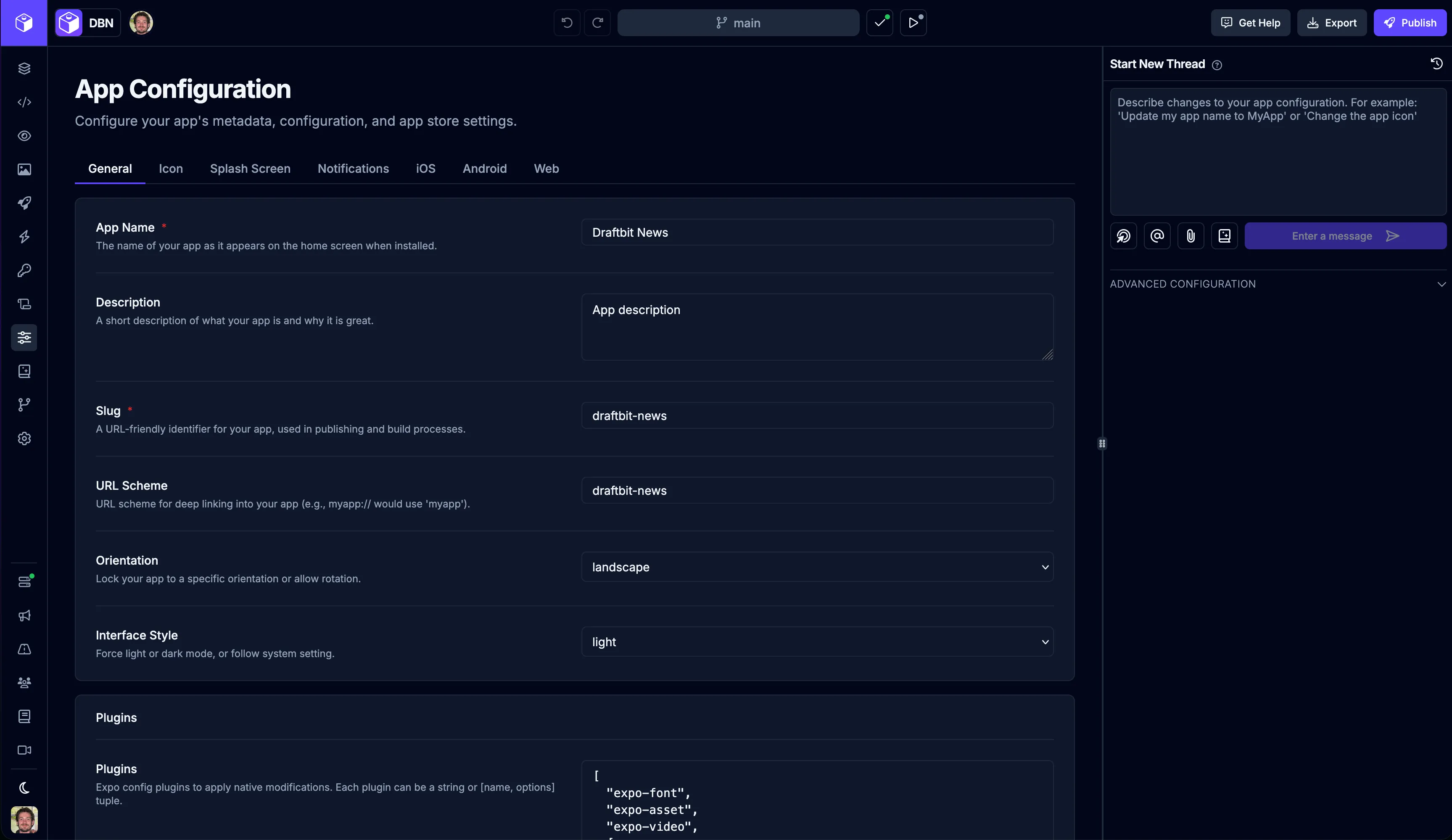
General
Section titled “General”These are the basic settings that apply to your app across all platforms. Give your app a name, set how the screen rotates, and configure other fundamental properties that define your app’s identity and behavior.
| Input | Description |
|---|---|
| App Name | The name of your app as it appears on the home screen when installed. |
| Description | A short description of what your app is and why it is great. |
| Slug | A URL-friendly identifier for your app, used in publishing and build processes. |
| URL Scheme | URL scheme for deep linking into your app (e.g., myapp:// would use ‘myapp’). |
| Orientation | Lock your app to a specific orientation or allow rotation. |
| Interface Style | Force light or dark mode, or follow system setting. |
Your app icon is what users see on their home screen. Upload a square image (we recommend 1024×1024 pixels) and it will be automatically resized for different devices and screen resolutions.
| Input | Description |
|---|---|
| App Icon | Local path or remote URL to an image to use for your app’s icon. We recommend that you use a 1024×1024 png file. |
| Use Project Icon | Use the icon configured for this project. |
View icon configuration on Expo Docs →
Splash Screen
Section titled “Splash Screen”The splash screen is the first thing users see when they launch your app—it displays briefly while your app loads. Choose an image and background color that represents your brand and creates a smooth transition into your app.
| Input | Description |
|---|---|
| Splash Image | Local path or remote URL to an image for the splash screen. Use a 1284×2778 png for best results. |
| Background Color | Background color for the splash screen. |
| Resize Mode | How the splash image should be resized to fit the screen. |
View splash screen configuration on Expo Docs →
Notifications
Section titled “Notifications”Configure how push notifications appear to your users. These settings control the icon, color, and behavior of notifications on both iOS and Android devices.
| Input | Description |
|---|---|
| Notification Icon | Local path or URL to an image for the Android notification icon. Must be a 96×96 png with transparency. |
| Notification Color | Tint color for the notification icon on Android. |
| iOS Display in Foreground | Show notifications when the app is in the foreground on iOS. |
| Android Mode | How notifications are displayed on Android. |
| Android Collapsed Title | Title shown when multiple notifications are collapsed on Android. |
View notifications configuration on Expo Docs →
These settings are specific to iPhones and iPads. Configure your Bundle Identifier (required for publishing to the App Store), set up iPad support, and manage the permissions your app needs to access device features like the camera or location.
| Input | Description |
|---|---|
| Bundle Identifier | Unique identifier for your iOS app (e.g., com.company.appname). Required for App Store. Learn more → |
| Supports Tablet | Whether your app supports iPad devices. |
| Uses Apple Sign In | Enable Apple Sign In capability for your app. Learn more → |
| Require Full Screen | Require the app to run in full screen mode on iPad (disables Split View and Slide Over). |
| Associated Domains | Domains for Universal Links and other app-to-web connections. E.g., [‘applinks:example.com’] Learn more → |
| App Store URL | URL to your app on the App Store. Used for rate prompts and sharing. |
View iOS configuration reference on Expo Docs →
Permissions
Section titled “Permissions”iOS requires a reason for each permission your app uses. Providing a reason here enables that permission—iOS will show your message when requesting access. Leave fields empty for permissions you don’t need.
| Permission | Description |
|---|---|
| Camera | This app needs camera access to take photos and scan barcodes |
| Microphone | This app needs microphone access to record audio |
| Photo Library (Read) | This app needs access to your photos to let you select images |
| Photo Library (Write) | This app needs permission to save photos to your library |
| Location (When in Use) | This app needs your location to show nearby places |
| Location (Always) | This app needs background location access to track your route |
| Contacts | This app needs access to your contacts to help you connect with friends |
| Calendar | This app needs calendar access to create and manage events |
| Reminders | This app needs access to your reminders to sync tasks |
| Motion & Fitness | This app needs motion data to track your steps and activity |
| Face ID | This app uses Face ID for secure authentication |
| Speech Recognition | This app needs speech recognition to convert your voice to text |
| Bluetooth | This app needs Bluetooth to connect to nearby devices |
| Apple Music | This app needs access to Apple Music to play songs from your library |
| User Tracking (ATT) | This app uses tracking to provide personalized ads |
Android
Section titled “Android”These settings are specific to Android phones and tablets. Configure your Package Name (required for publishing to the Google Play Store), customize your app’s adaptive icon, and select which permissions your app needs.
| Input | Description |
|---|---|
| Package Name | Unique identifier for your Android app (e.g., com.company.appname). Required for Play Store. Learn more → |
| Adaptive Icon Foreground | Foreground image for Android adaptive icons. Should be 1024×1024 png with transparency. Learn more → |
| Adaptive Icon Background | Background color for Android adaptive icons. |
View Android configuration reference on Expo Docs →
Permissions
Section titled “Permissions”Android permissions to include in your app. These are added to AndroidManifest.xml.
Available permissions:
- ACCESS_BACKGROUND_LOCATION
- ACCESS_COARSE_LOCATION
- ACCESS_FINE_LOCATION
- BLUETOOTH_CONNECT
- BLUETOOTH_SCAN
- CALL_PHONE
- CAMERA
- FOREGROUND_SERVICE
- POST_NOTIFICATIONS
- READ_CALENDAR
- READ_CONTACTS
- READ_EXTERNAL_STORAGE
- READ_MEDIA_AUDIO
- READ_MEDIA_IMAGES
- READ_MEDIA_VIDEO
- READ_PHONE_STATE
- RECEIVE_BOOT_COMPLETED
- RECEIVE_SMS
- RECORD_AUDIO
- SEND_SMS
- USE_BIOMETRIC
- VIBRATE
- WRITE_CALENDAR
- WRITE_CONTACTS
- WRITE_EXTERNAL_STORAGE
View Android permissions reference →
Blocked Permissions
Section titled “Blocked Permissions”Android permissions to explicitly remove. Use this to block permissions added by libraries.
When you publish your app to the web, it can work like a Progressive Web App (PWA) that users can install on their devices. These settings control how your web app appears in browsers and when installed on a user’s home screen.
| Input | Description |
|---|---|
| Favicon | Local path or URL to an image for the web favicon. Recommended: 48×48 png. Learn more → |
| Theme Color | Theme color for the web app. Used in the browser toolbar and PWA splash screen. Learn more → |
| Name | Full name of the web app, shown in browser tab and PWA install prompt. Learn more → |
| Short Name | Short name for PWA (max ~12 chars). Shown on home screen when installed as PWA. Learn more → |
| Language | Language code for the web app (e.g., ‘en’, ‘en-US’, ‘ja’). Learn more → |
| Background Color | Background color for PWA splash screen and fallback during app load. Learn more → |
| Description | Description for PWA manifest. Shown in browser install prompts. Learn more → |
| Orientation | Default orientation for the web app when installed as a PWA. Learn more → |
| Start URL | URL that loads when PWA is launched from home screen. Defaults to ’/’. Learn more → |