

Publishing Overview
Switch to Publish view using the
icon in the main menu.
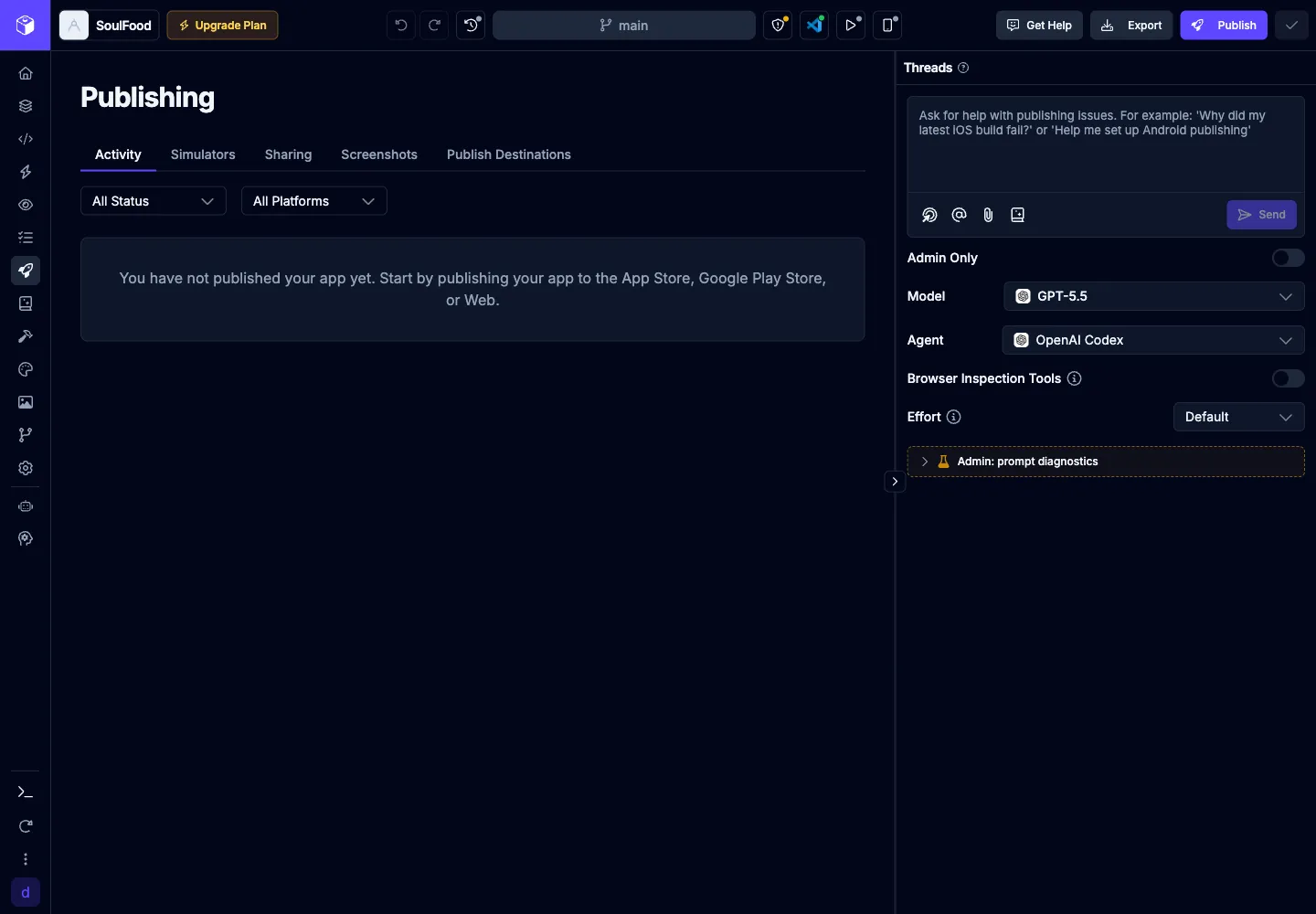
Publish Entry Point
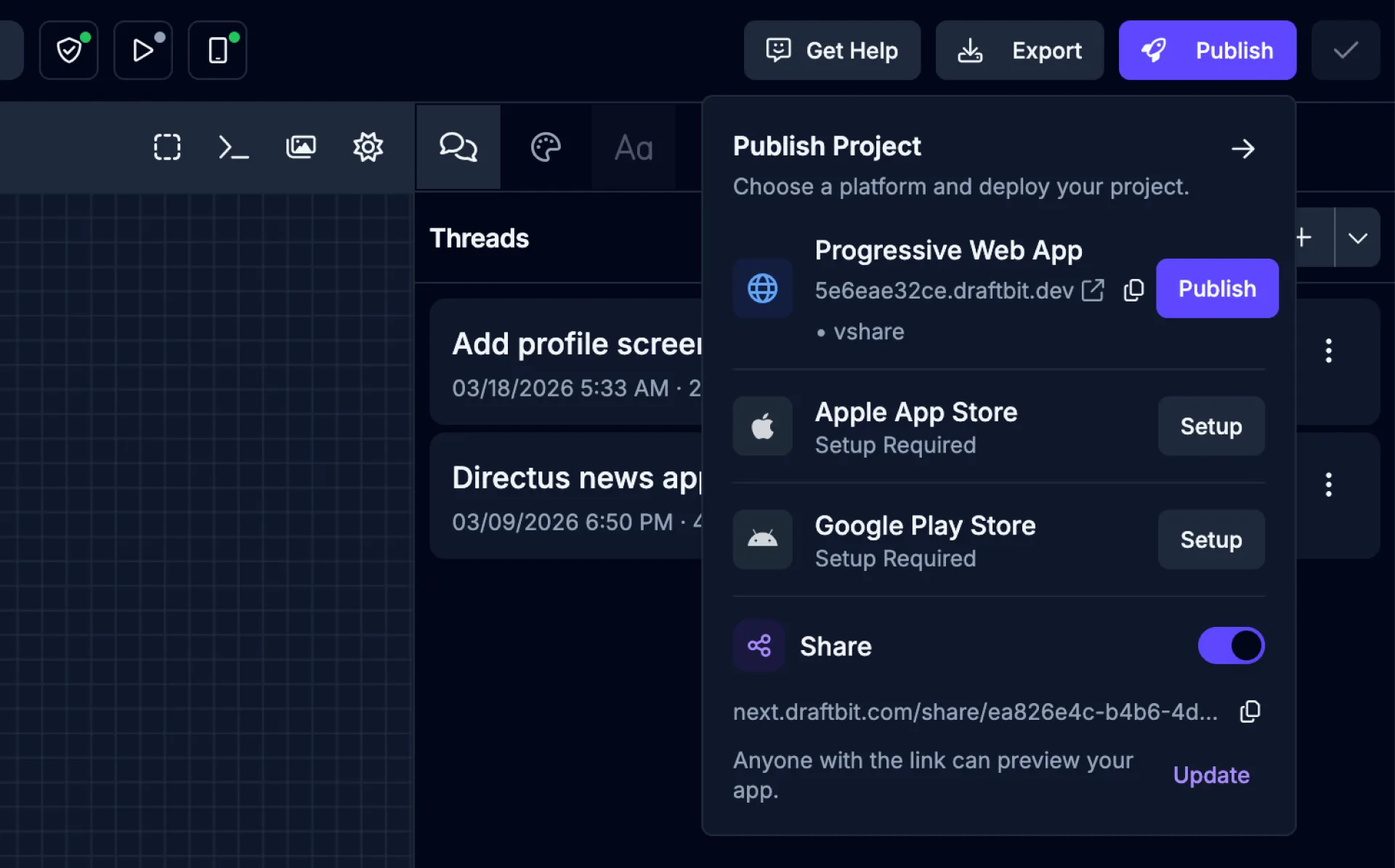
Section titled “Publish Entry Point”The fastest way to publish is the Publish popover in the top bar of the Builder. It exposes four destinations side‑by‑side:
- Progressive Web App — one-click web deployment
- Apple App Store — native iOS publishing
- Google Play Store — native Android publishing
- Share — generate a public share page
If a native destination hasn’t been configured yet, choosing it routes you to the setup flow on the Publishing page first. Once configured, the popover lets you ship a build straight from the top bar.
Production vs. staging
Section titled “Production vs. staging”Native destinations support both Production and Staging publishes. Staging publishes work the same as production but ship to TestFlight (iOS) or the Internal Testing track (Android). When you choose Staging, Draftbit shows a brief warning before continuing so you don’t accidentally ship to your testers without intending to.
Native Previews
Section titled “Native Previews”You can create native development builds of your app to preview on real iOS and Android simulators running in the Preview Panel.
To start the build process, click the  button from the Publishing page or the native builds
  dropdown from the top bar.
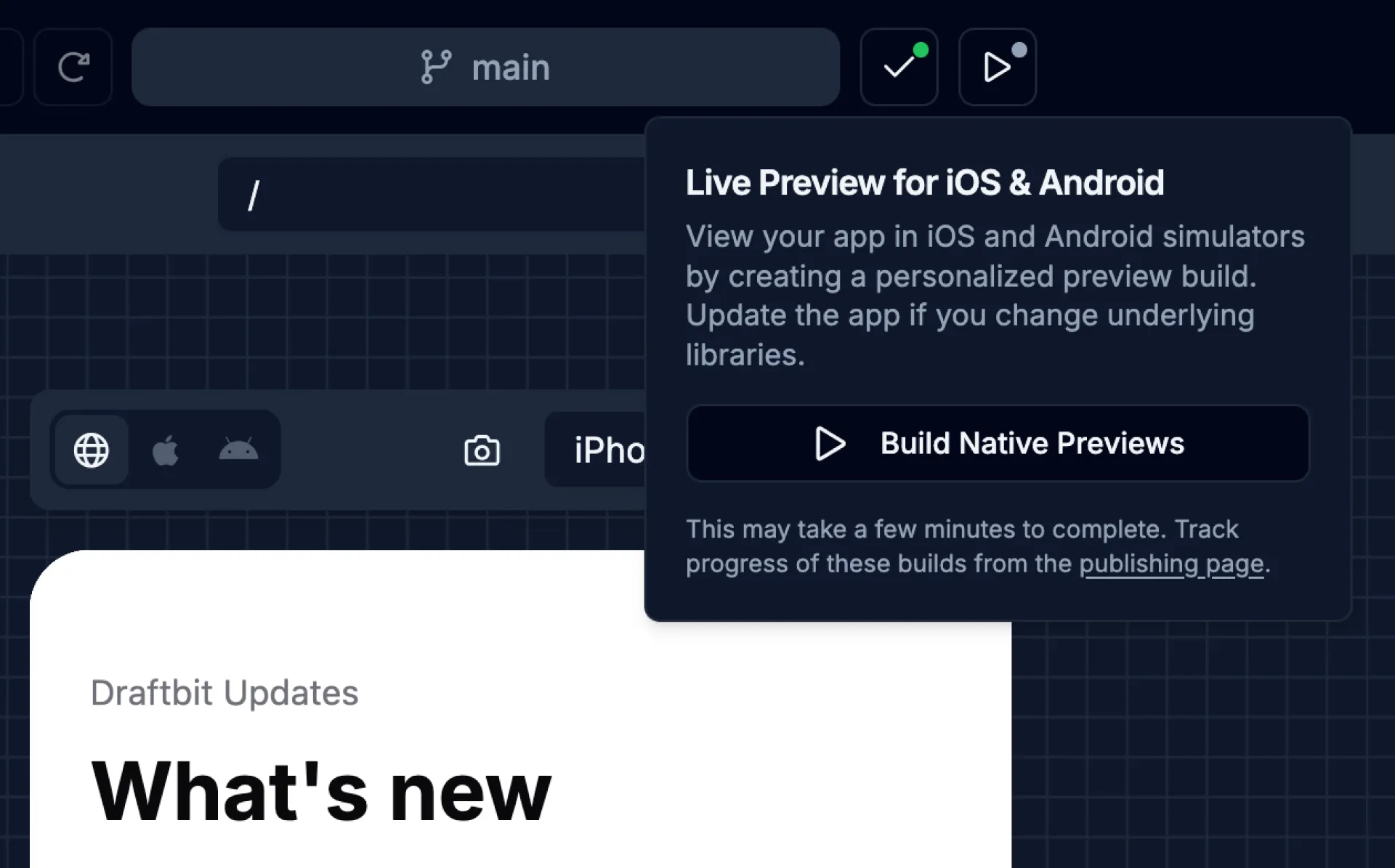
The build process may take a few minutes to complete. Track progress of these builds from the Publishing page. Learn more about previewing your app in the Preview Panel.
Share page
Section titled “Share page”You can create a public share page for any app in Draftbit. This gives your project a clean, standalone page where anyone can view and try it — no Draftbit account required. Great for sharing a prototype with a client, showing off a side project, or sending something to a friend for feedback.
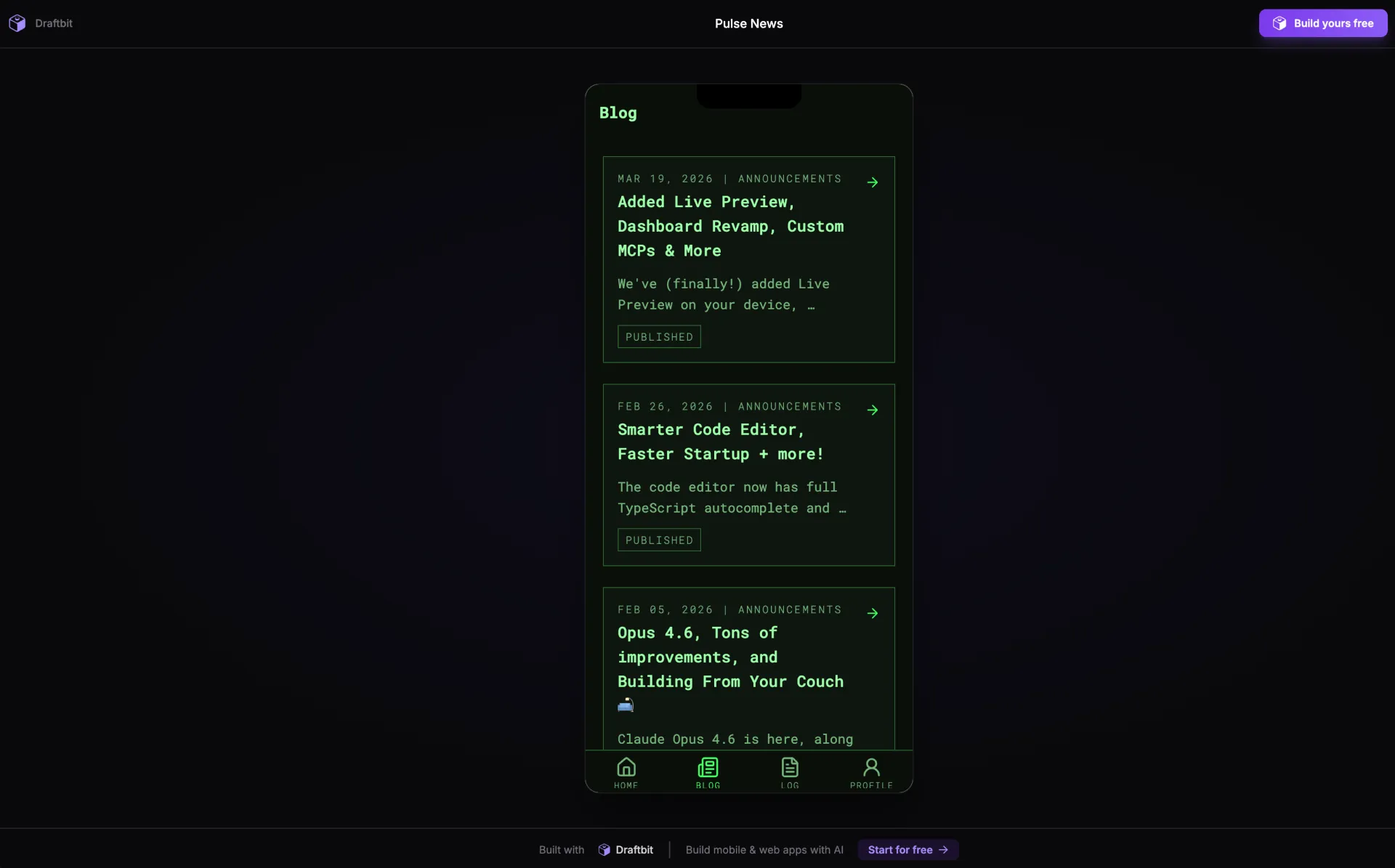
Just click the  button in the top right of the builder and enable the Share option. Your share page will be generated and a public URL will be provided which you can send to others.
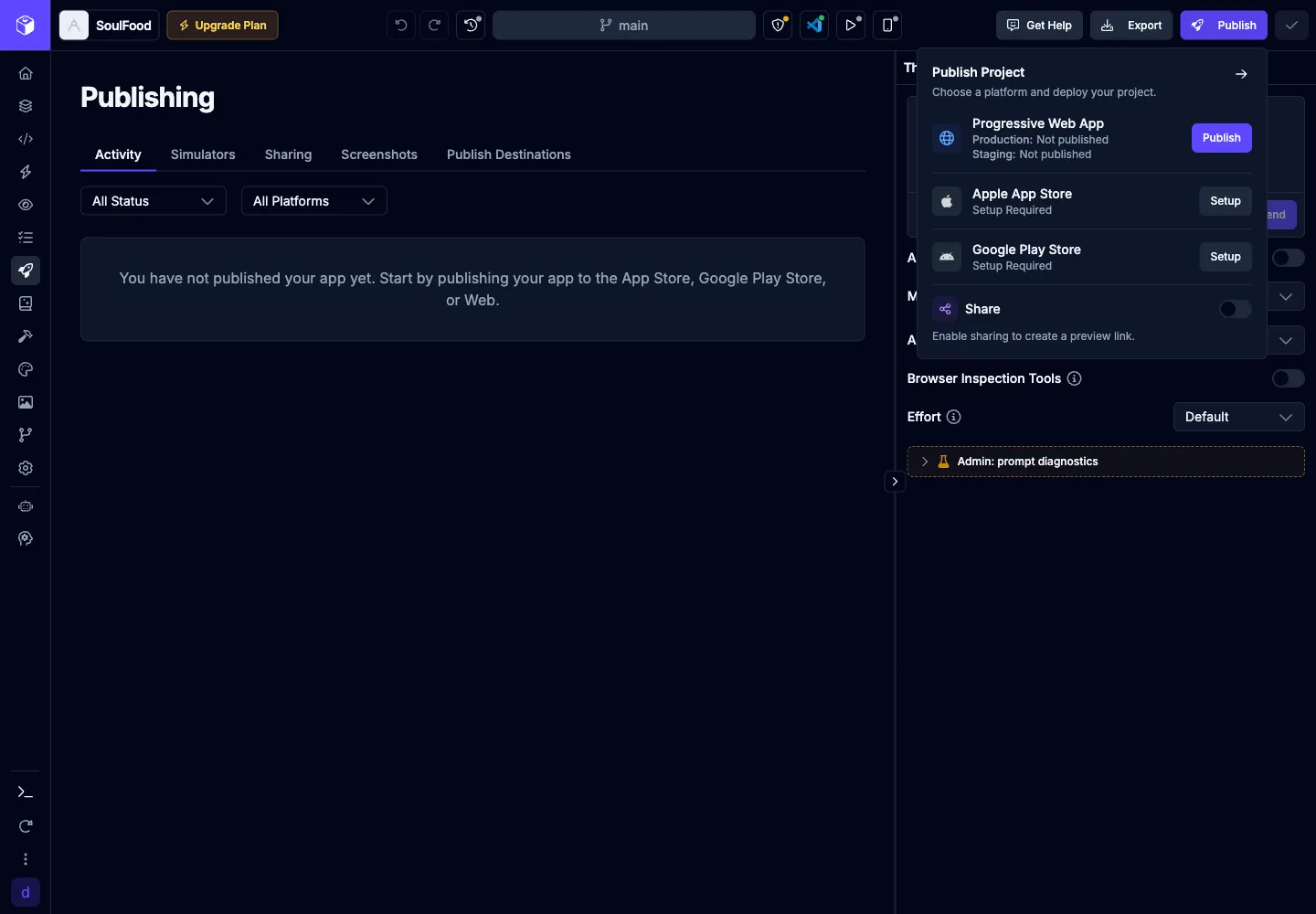
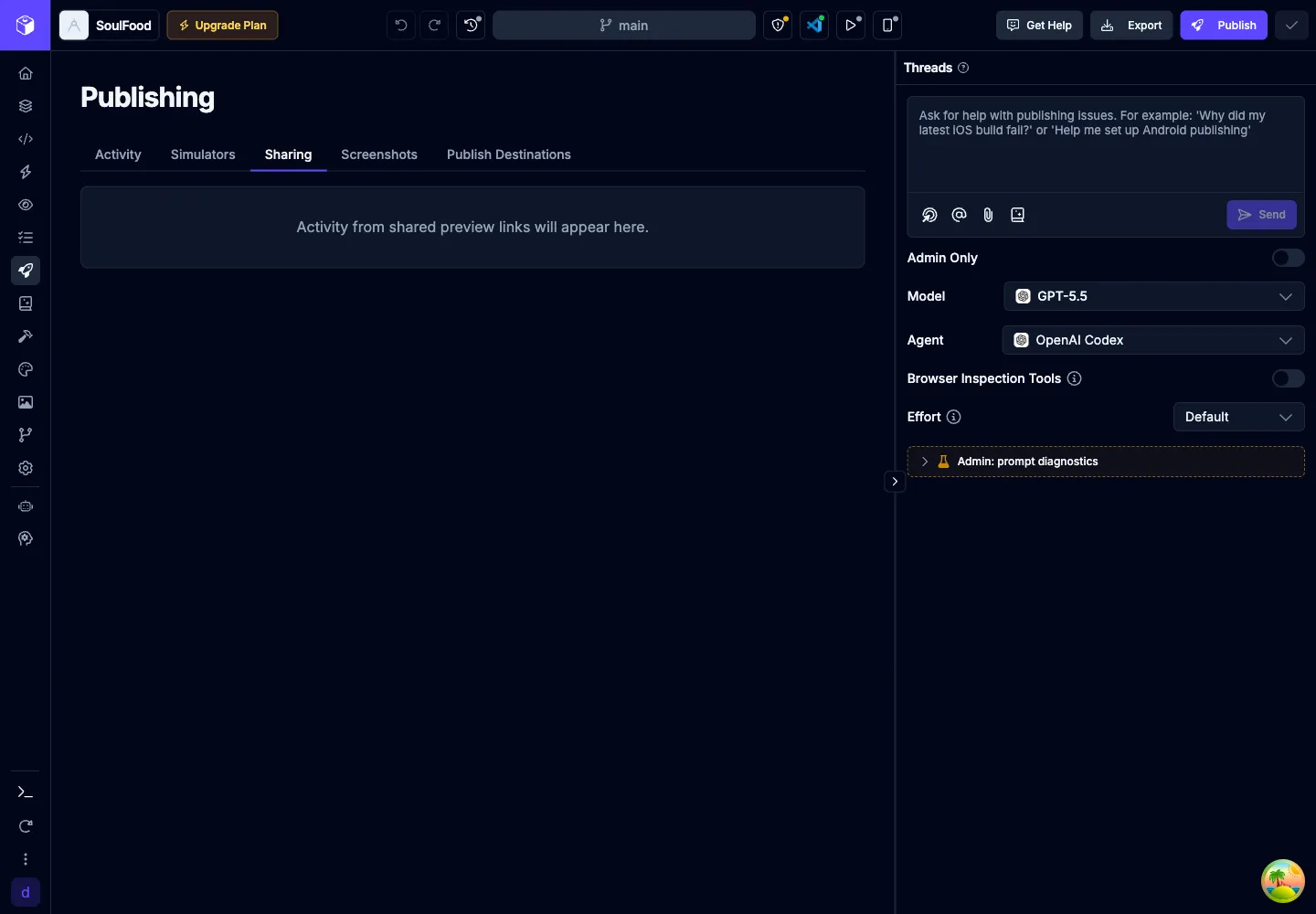
You can disable sharing later from the same publish popover. Disabled or invalid share links show an unavailable state instead of the app preview.
Unpublish Web Deployments
Section titled “Unpublish Web Deployments”Production and staging web deployments can be unpublished separately from the Builder publish popover. When a deployment is unpublished, its URL is inactive until you publish that environment again.
Code Export
Section titled “Code Export”You can export your app’s codebase as a ZIP file for publishing your app manually or to continue development outside of Draftbit.
To start the export process, click the  button in the top right of the Builder.
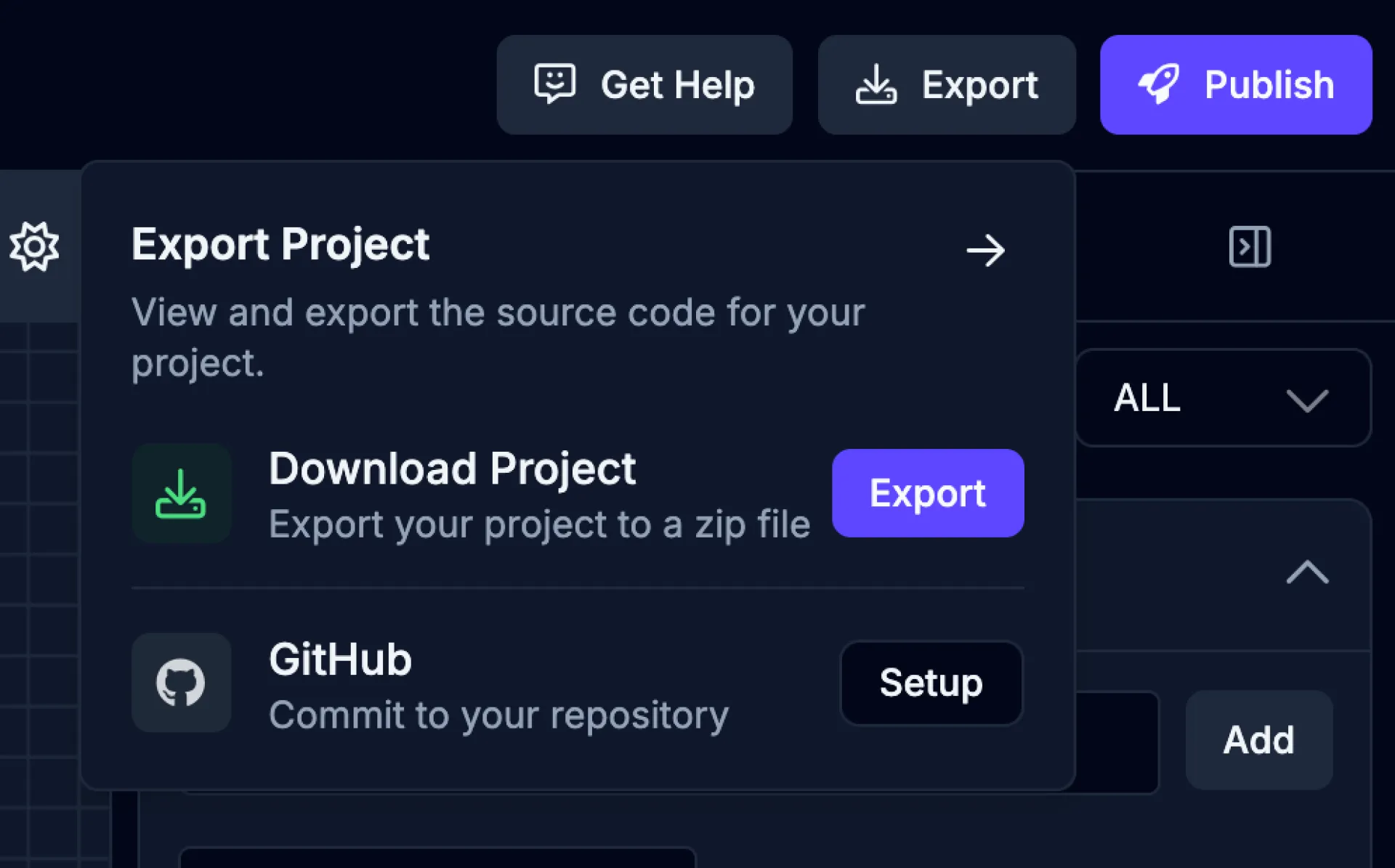
The export process may take a few minutes to complete. Track progress of the export from the export dropdown.
GitHub Export
Section titled “GitHub Export”You can export your app to a GitHub repository to continue development or collaborate with others.
To start the export process, select the GitHub Export option from the Publishing page. Fill in the required fields and click the Save Configuration button.
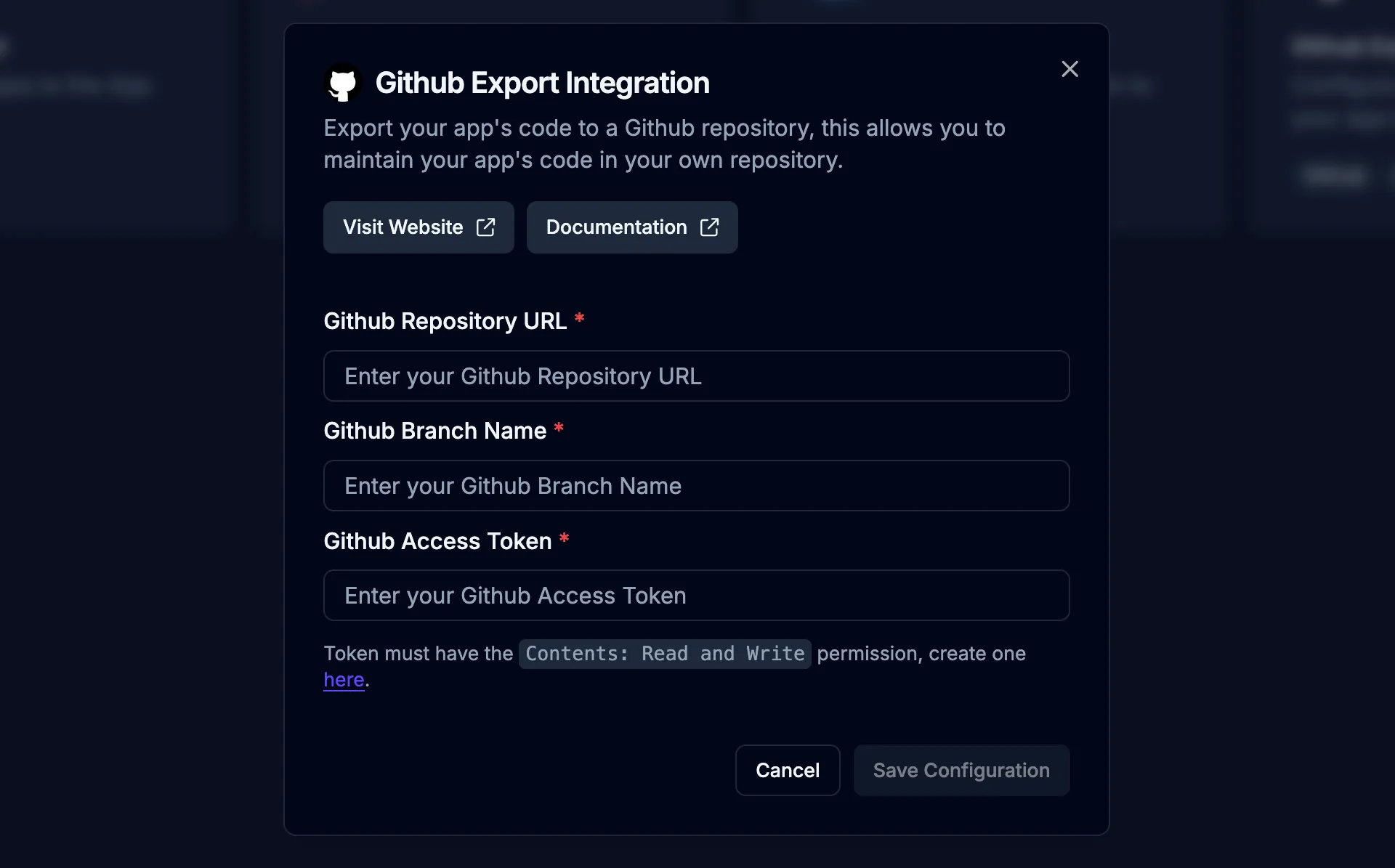
The export process may take a few minutes to complete. Track progress of the export from the Publishing page.
GitHub repository values are validated before saving. You can use a full GitHub URL or an org/repo slug, then check access before starting an export.
| Field | Description |
|---|---|
| GitHub Repository URL | The HTTPS URL of the GitHub repository to which the exported code will be pushed. Example: https://github.com/username/repository |
| GitHub Branch Name | The branch within your repository where code will be exported. Example: main or develop |
| GitHub Access Token | A personal access token with repo (read and write) permissions for authentication with GitHub. Create a token here. For security, don’t share your token publicly. |
App Store Screenshots
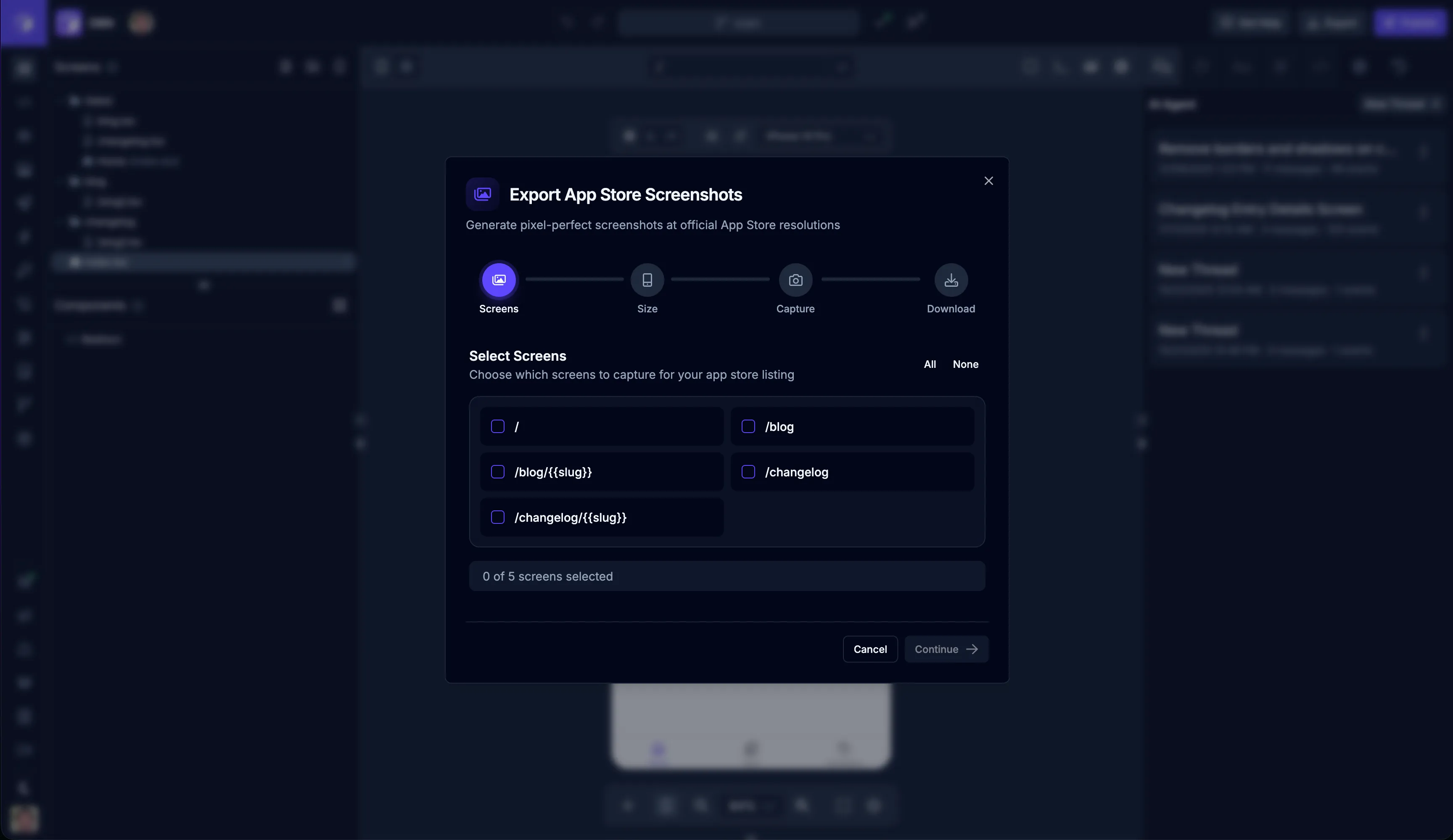
Section titled “App Store Screenshots”Draftbit includes a tool to automatically create screenshots of your app. You can use this tool to create screenshots for your app’s App Store listing.
To open the App Store Screenshot Tool, click the  button in the top toolbar of the Preview panel.
One-Click Publishing
Section titled “One-Click Publishing”Once you’ve built your app in Draftbit, you’re ready to share it with the world! Draftbit offers two approaches to publishing: One-Click Publishing for simplicity, and Manual Publishing for more control.
The easiest way to get your app published to the web, iOS, and Android. Draftbit handles the build and submission details automatically.
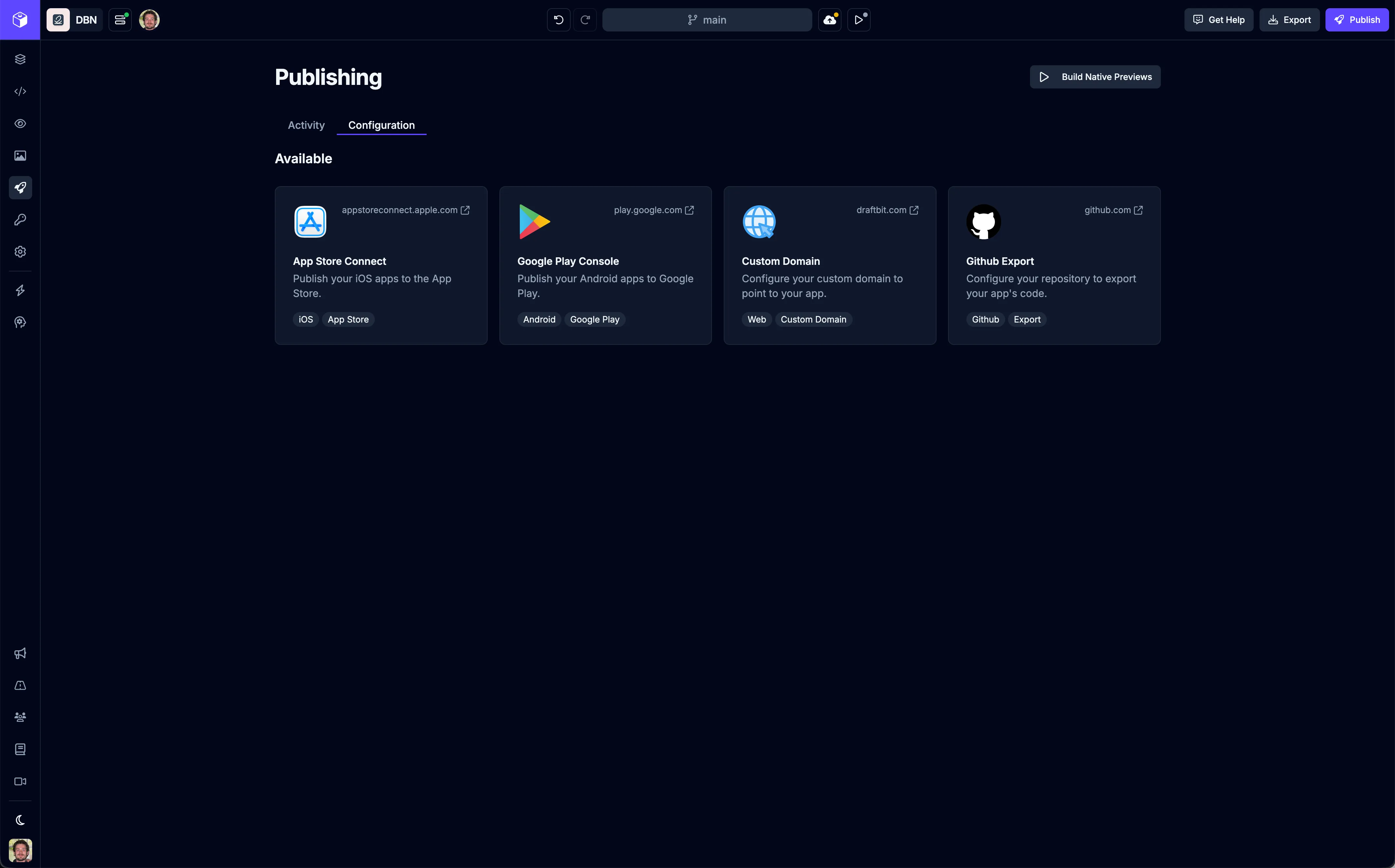
You can configure publish destinations by switching to the  tab on the Publishing page.
Publish activity loads in pages, so long publishing histories stay responsive. Native simulator builds appear separately from web, iOS, and Android publish activity.
When a publish is already running, the publish button shows whether that platform is publishing or queued and prevents duplicate publishes to the same environment. You can still publish a different platform or environment in parallel when available.
Manual Publishing
Section titled “Manual Publishing”For developers who want full control over the publishing process. You’ll download your app’s source code and handle the deployment yourself.
How to Choose
Section titled “How to Choose”Choose One-Click Publishing if:
- You want the fastest, simplest way to publish
- You’re new to app development
- You don’t need custom deployment configurations
Choose Manual Publishing if:
- You want full control over the build and deployment process
- You have specific technical requirements
- You want to integrate with your own CI/CD pipeline
- You need to customize app signing or certificates
Ready to publish? Start with one-click publishing for the easiest experience, or dive into manual publishing if you need more control.