

Code Editor
Switch to Code view using the
icon in the main menu.
In addition to Draftbit’s powerful no-code, AI-powered, development features, a full in-browser code editor is also available for people with more technical experience. You have full access to your app’s codebase and can add, edit, delete files as needed.
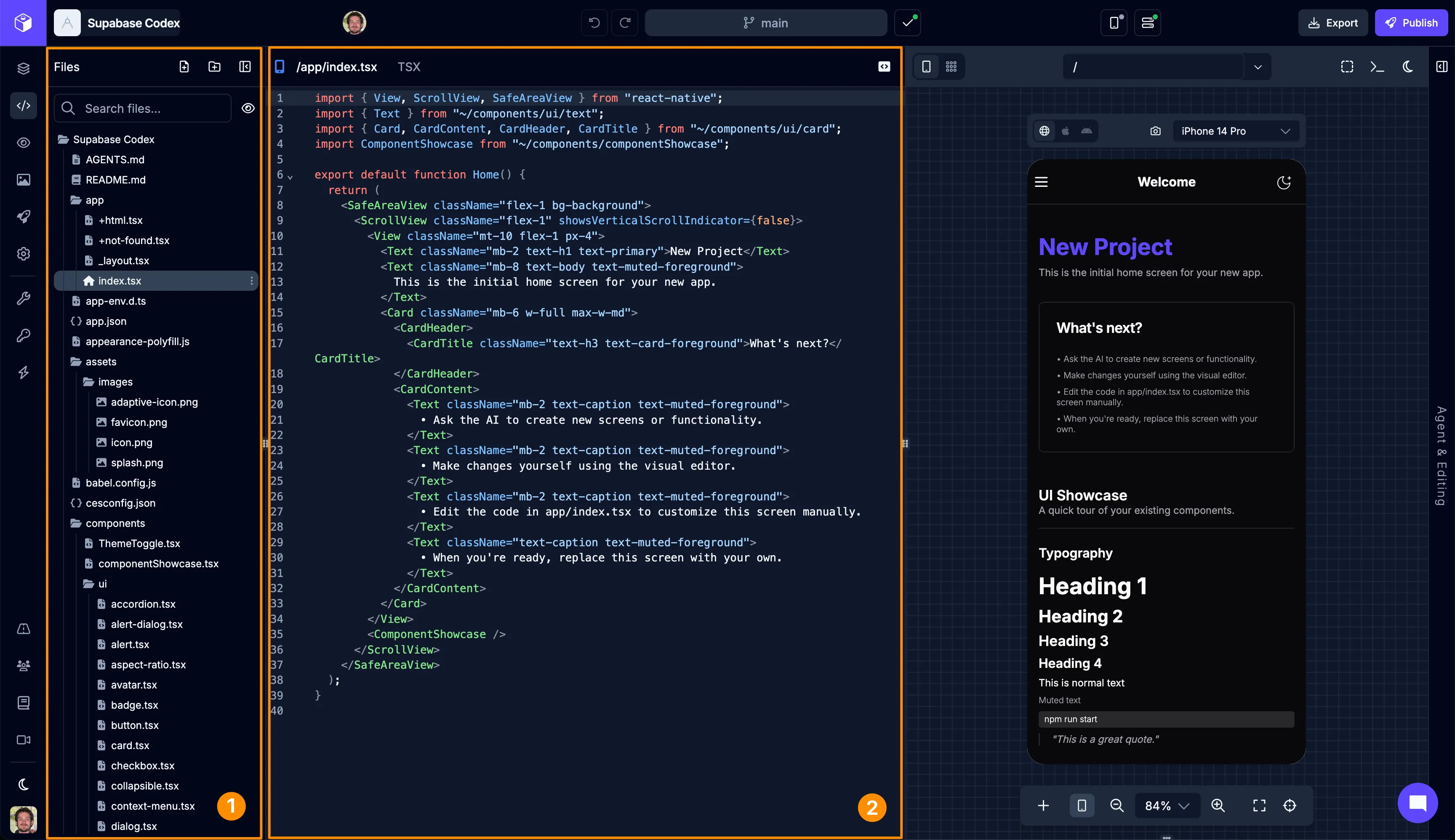
| # | Name | Description |
|---|---|---|
| 1 | File Tree | A list of all the files and folders in your app’s codebase |
| 2 | Editor | A full in-browser code editor to editor your app files |
You have full access to all the files and folders in your app project’s codebase. From the File Tree you can explore these files and folders, add new files, or update and delete existing files. Files can also be added to the AI Chat context so that the Agent can help you with a specific file.
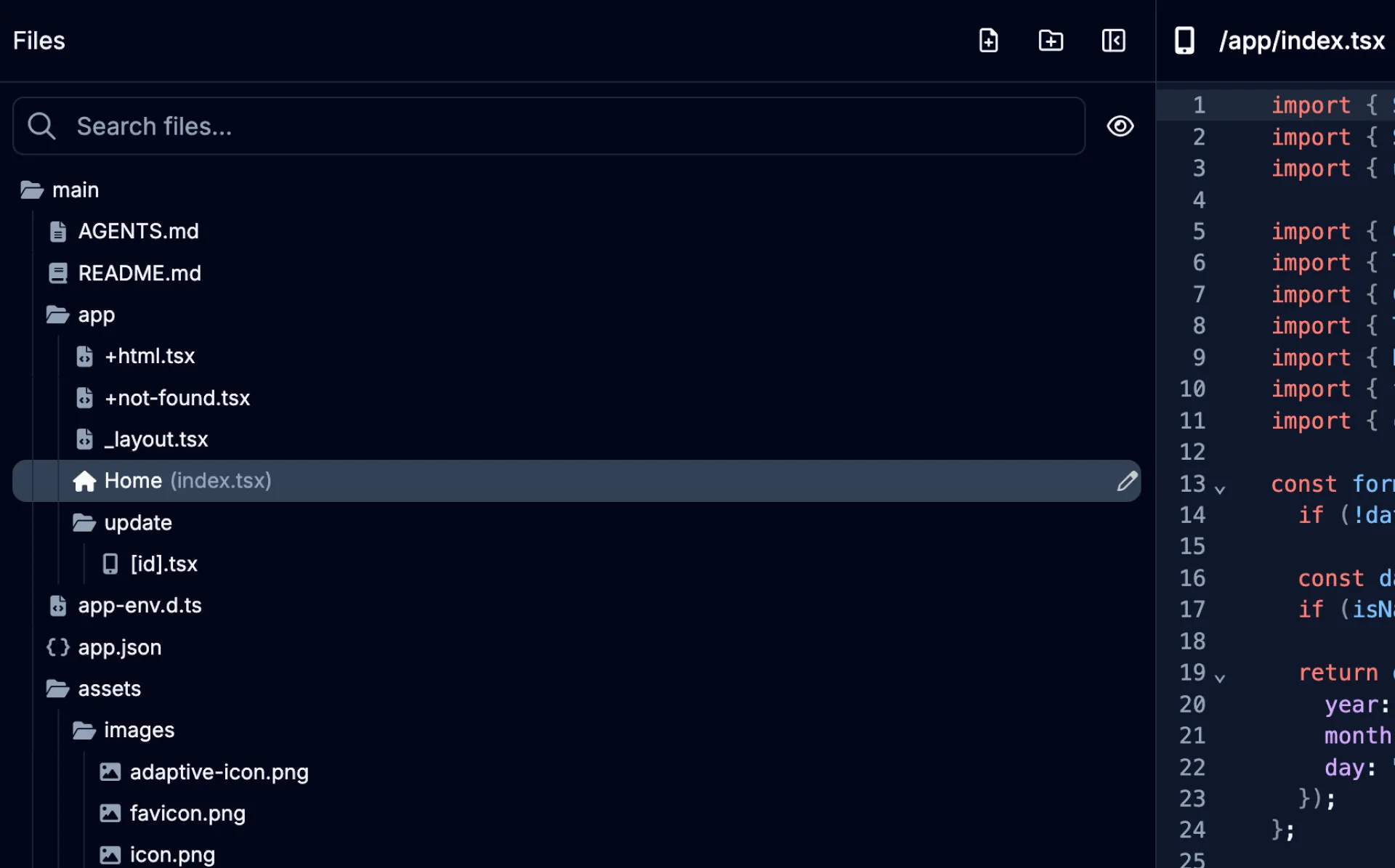
| Icon | Action | Description |
|---|---|---|
 | Add File | Adds a new file to the codebase |
 | Add Folder | Adds a new folder to the codebase |
Editor
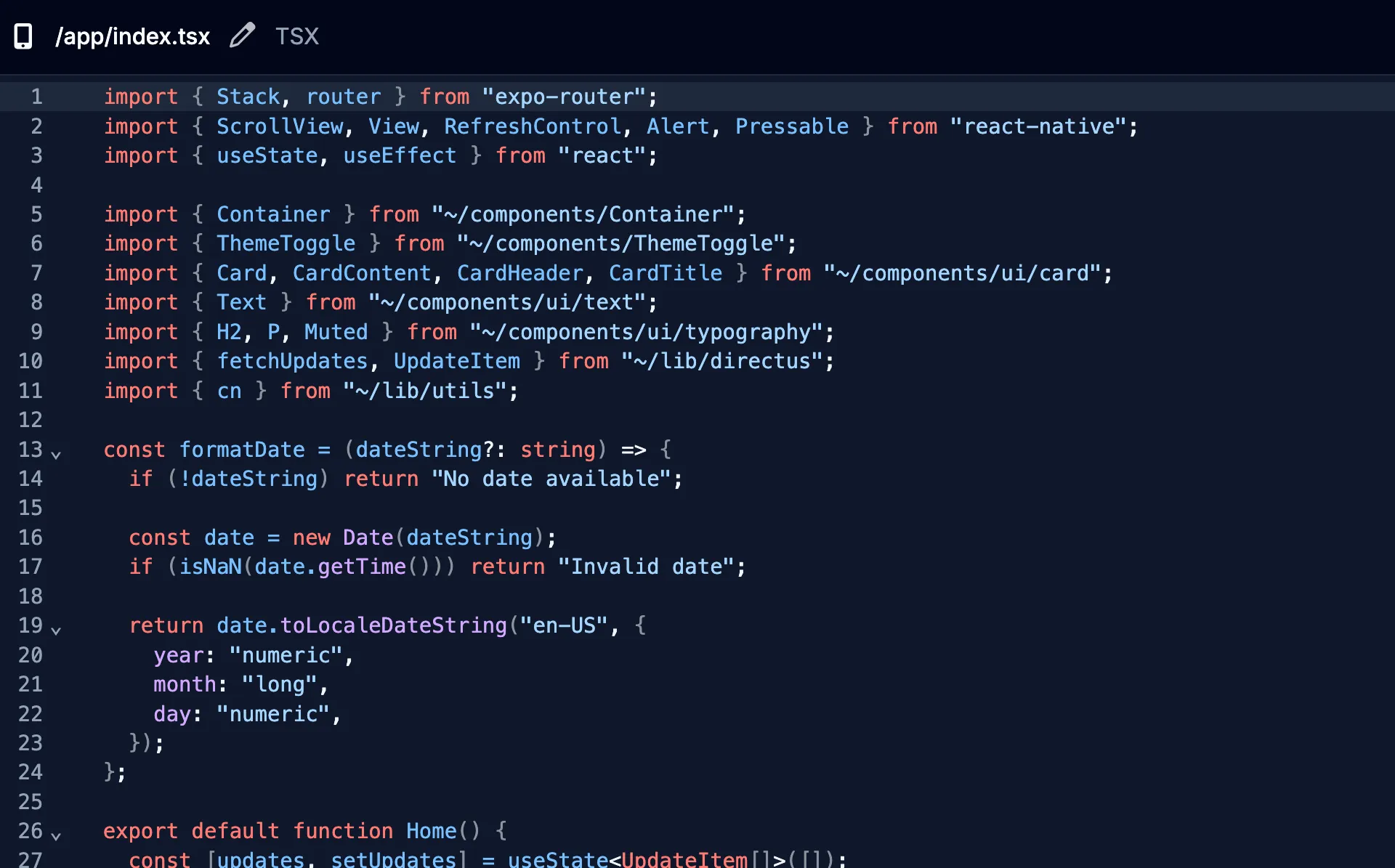
Section titled “Editor”You can open any of your project’s files in the provided code editor to make manual changes to the codebase yourself. The editor features autocomplete suggestions, formatting options, search and more. This is very handy for more technical users who have experience with JavaScript and React Native, allowing you to make changes directly to the code when needed.
Saving Changes
Section titled “Saving Changes”Changes to files (and folders) that you make yourself are treated the same as when the AI Agent makes changes. You can discard or commit your changes in the Save menu by clicking on the  icon in the top bar of the Builder.
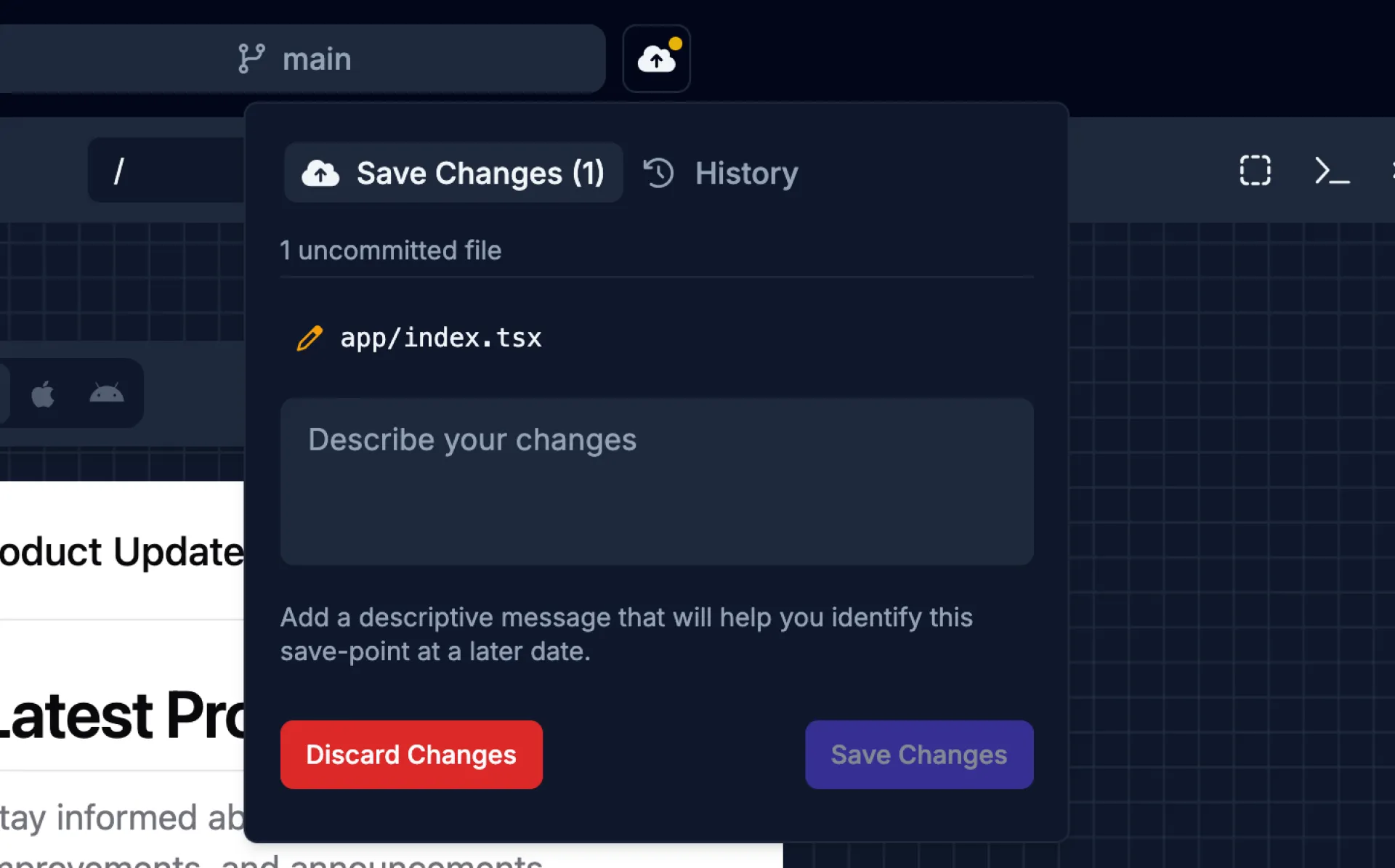
You can also discard any changes the specific file using the  button at the top of the code editor.