

Git History
Switch to Git History view using the
icon in the main menu.
The Git History view allows you to view the history of your project. This is useful for debugging and troubleshooting your app.
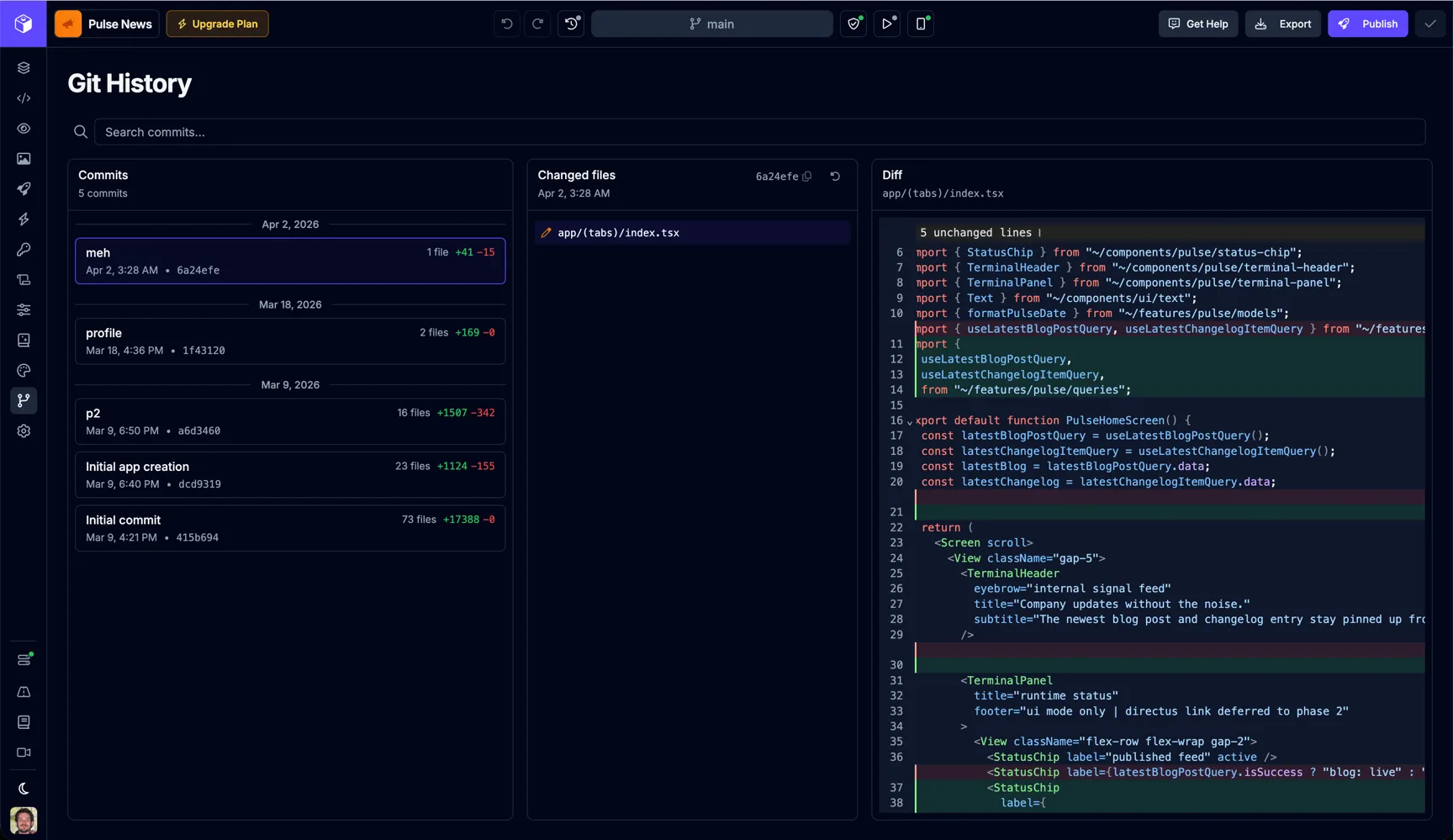
Commits
Section titled “Commits”The Git History view shows a list of all the commits made to your project. Each commit is represented by a card with the commit message, author, date, and a link to the commit details.
| Input | Description |
|---|---|
| Commit Message | The message of the commit. |
| Date | The date of the commit. |
| Files Changed | A count of the files that have been changed in the commit. |
| Lines Added | A count of the lines that have been added in the commit. |
| Lines Removed | A count of the lines that have been removed in the commit. |
Changed Files
Section titled “Changed Files”The Git History view shows a list of all the files that have been changed in your project. Each file is represented by a card with the file name and path. Click to view the diff of the changes made in the commit.
| Input | Description |
|---|---|
| File Name | The name of the file. |
| Path | The path of the file. |
| Commit Hash | The hash of the commit. |
The Git History view shows a diff of the changes made to a file in a commit. The diff is represented by a list of lines that have been changed, added, or deleted. Each line is represented by a card with the line number, the line content, and a link to the file details.
| Input | Description |
|---|---|
| Path | The path of the file. |
| File Content | The diff content of the file. |
Rolling back
Section titled “Rolling back”To return your project to the state of an earlier commit, select that commit in the list and use the Roll back to this point action. Rolling back creates a new commit that restores the selected state — your full history is preserved, so you can always roll forward again or pick a different point.
For an interactive overview of the same flow inside the Design view, see Reverting Changes.