

Tasks
The Tasks page gives you a shared place to plan work for an app, assign ownership, and hand individual tasks to an agent when you are ready to start.
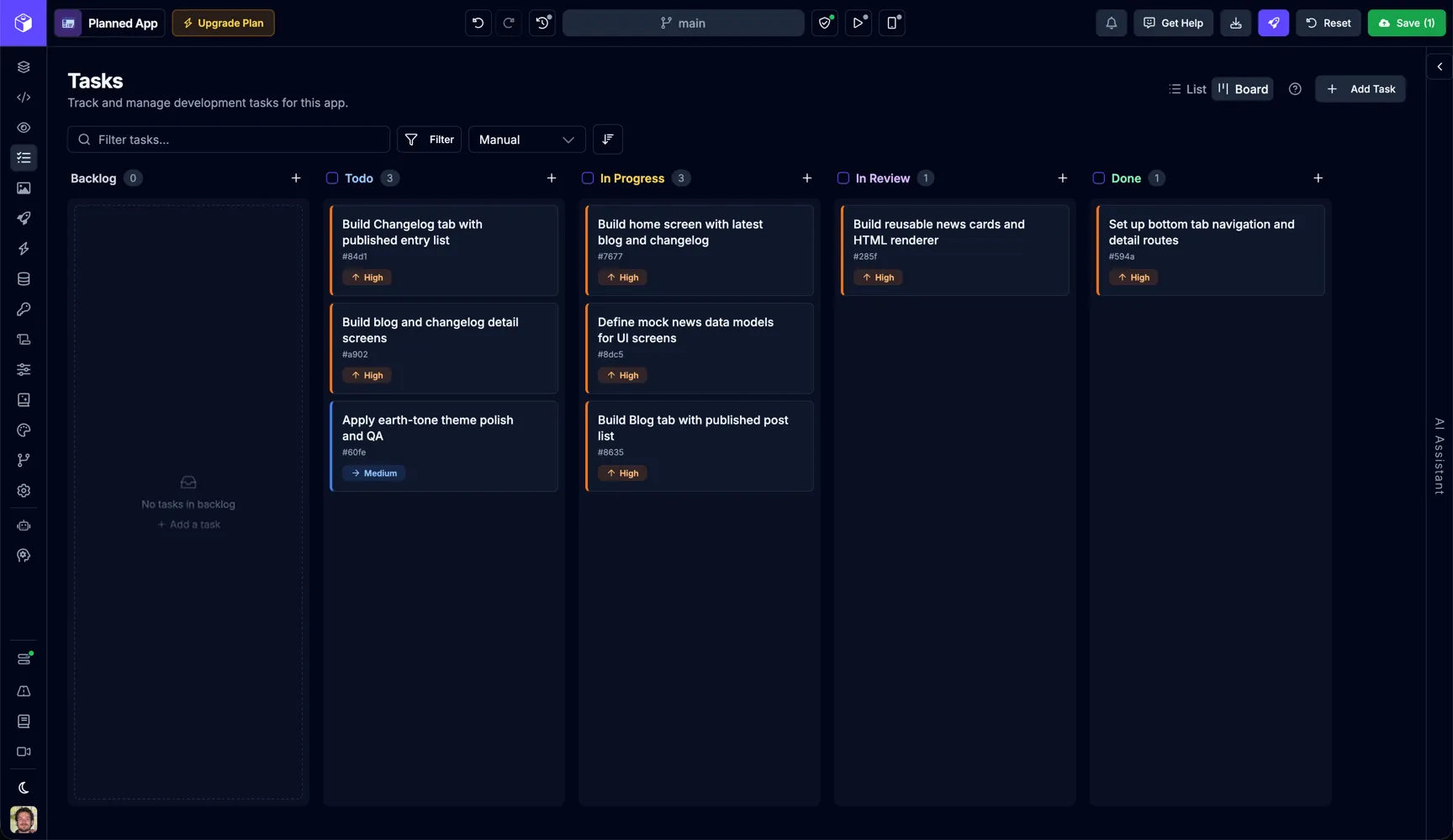
Open Tasks
Section titled “Open Tasks”Open Tasks from the project navigation inside the Builder.
The page opens in a split layout:
- The left side is your task workspace.
- The right side is the Tasks Agent, where you can describe tasks to create, break larger work into smaller tasks, or request changes to existing tasks.
Task workspace
Section titled “Task workspace”Use the top bar to switch views, search, filter, and create new tasks.
| Control | Description |
|---|---|
| Search | Filter tasks by typing into the search field. |
| Filter | Filter by status, priority, assignee, or tag. |
| Sort | Sort by manual order, priority, due date, created date, or updated date. |
| Sort direction | Reverse the current sort order. |
| Keyboard shortcuts | Open the shortcuts reference for the Tasks page. |
| Add Task | Open the full task creation dialog. |
When filters are active, Draftbit shows removable filter pills below the toolbar so you can clear one filter at a time or reset all of them at once.
Board view
Section titled “Board view”Board view organizes tasks into these working columns:
- Backlog
- Todo
- In Progress
- In Review
- Done
You can drag tasks between columns to move work forward. If you are using a non-manual sort, drag and drop still helps you move a task into a different status while the active sort controls the order inside each column.
Each column also supports quick task creation. Use the plus button to start a new task, then press Enter to create it immediately or Shift + Enter to open the full dialog with the title pre-filled.
List view
Section titled “List view”List view is better when you want to scan metadata or update several tasks quickly.
| Column | Description |
|---|---|
| Task | Shows the short task ID and whether the task already has an agent thread. |
| Title | Shows the task title and visible tags. |
| Status | Update the task status inline. |
| Priority | Update the task priority inline. |
| Assignees | Shows the assigned team members. |
| Due Date | Set or update the due date inline. |
| Actions | Start work, open the task, or use the task menu for more actions. |
List view also supports multi-select. Select one or more tasks to apply bulk actions for status, priority, or deletion.
Create and organize tasks
Section titled “Create and organize tasks”You can create tasks in several ways:
- Click Add Task to open the full task dialog.
- Create a task inline from a board column.
- Press N anywhere on the Tasks page.
- Ask the Tasks Agent to create tasks for you.
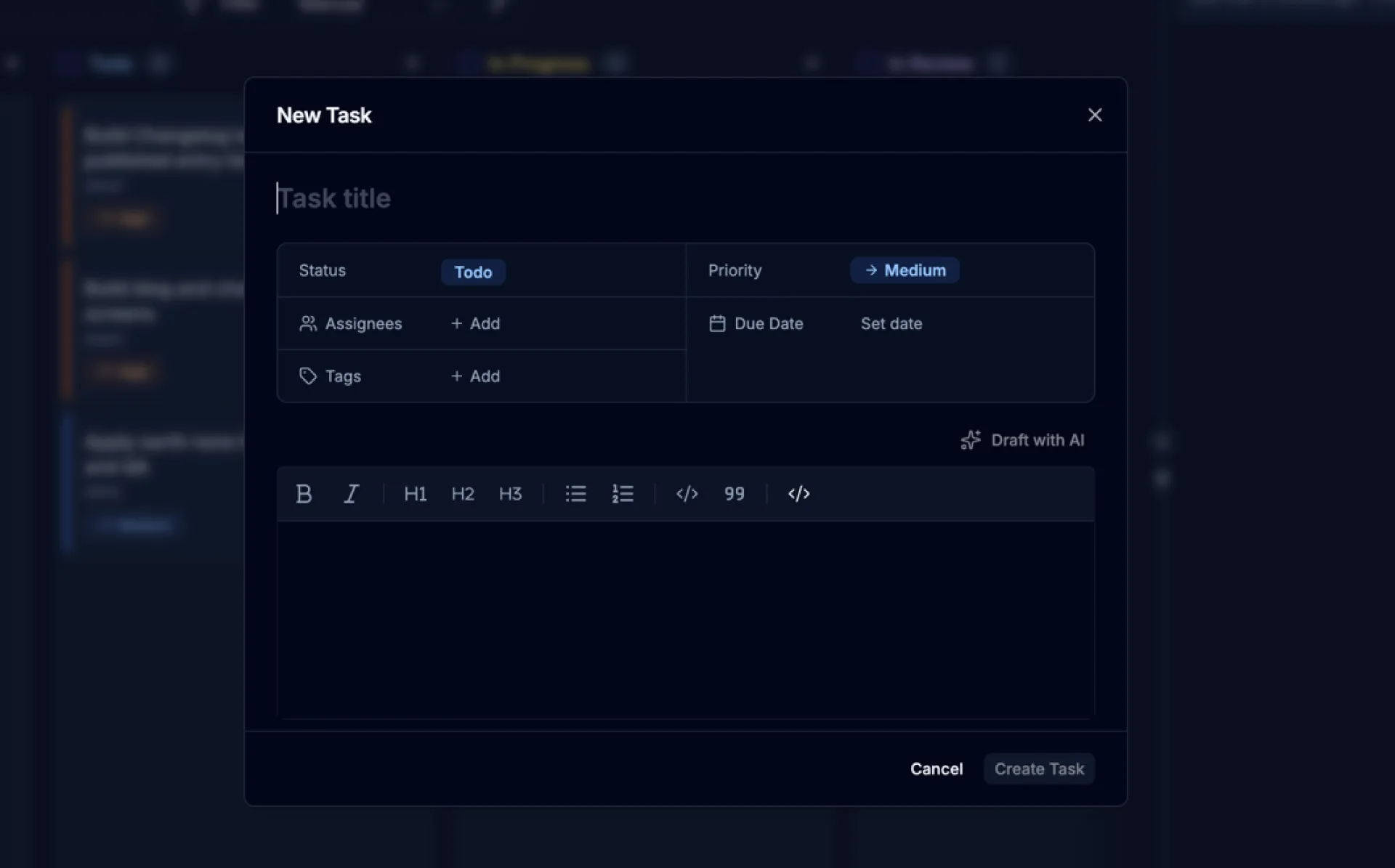
The full task dialog lets you set:
| Field | Description |
|---|---|
| Title | A short, descriptive name for the task. |
| Description | A longer description written in the markdown editor. Use Draft with AI to generate a starting description from the title. |
| Status | The current state of the task. Options are Backlog, Todo, In Progress, In Review, Done, and Cancelled. |
| Priority | How important the task is. Options are Low, Medium, High, and Urgent. |
| Assignees | The team members responsible for the task. |
| Tags | Labels for grouping or filtering related tasks. |
| Due date | An optional date the task should be completed by. |
Start work with an agent
Section titled “Start work with an agent”Tasks are designed to move cleanly from planning into execution.
From the list view, board view, or task detail page, you can start a task in two ways:
- Start opens the app with the selected task attached so you can work in context.
- Start In Background launches the task with an agent without taking you away from the Tasks page.
Once a task has an agent thread, the start controls change to View thread.
If another thread is already running in the same app, Draftbit disables new start actions until that run finishes.
Task details
Section titled “Task details”Open any task to see the full detail page.
From there, you can:
- Edit the title inline.
- Update status, priority, assignees, tags, and due date.
- Write or revise the description in the markdown editor.
- Use Draft with AI to generate a description when you need a starting point.
- Add comments and review agent comments in the same timeline.
- Open the linked agent thread when one exists.
- Delete the task if it is no longer needed.
Use J and K on the detail page to move to the next or previous task.
Keyboard shortcuts
Section titled “Keyboard shortcuts”| Shortcut | Description |
|---|---|
| N | Create a new task |
| L | Switch to list view |
| B | Switch to board view |
| ? | Open the keyboard shortcuts reference |
| Enter | Quick create a task from the inline board composer |
| Shift + Enter | Open the full create dialog from the inline board composer |
| 1 to 4 | Set task priority from the task context menu |
| J | Open the next task from task detail view |
| K | Open the previous task from task detail view |
Tasks Agent
Section titled “Tasks Agent”The right-side Tasks Agent panel is useful when you want help shaping work before you start implementation.
Use it to:
- create a first set of tasks from a feature idea
- break a larger feature into smaller tasks
- ask for follow-up task changes as the project evolves
This keeps planning and execution close together. You can define work on the right, organize it on the left, and start the next task when you are ready.