

Cloud Storage
Switch to Assets view using the
icon in the main menu.
Every app project in Draftbit gets its own place in the cloud to store its media assets like image, video, and audio files. These files are served by high-availability and high-performance cloud storage servers.
Once you’ve upload assets into your assets bucket, you can then reference those media files in your chat with the AI Agent or when making changes to the code directly yourself.
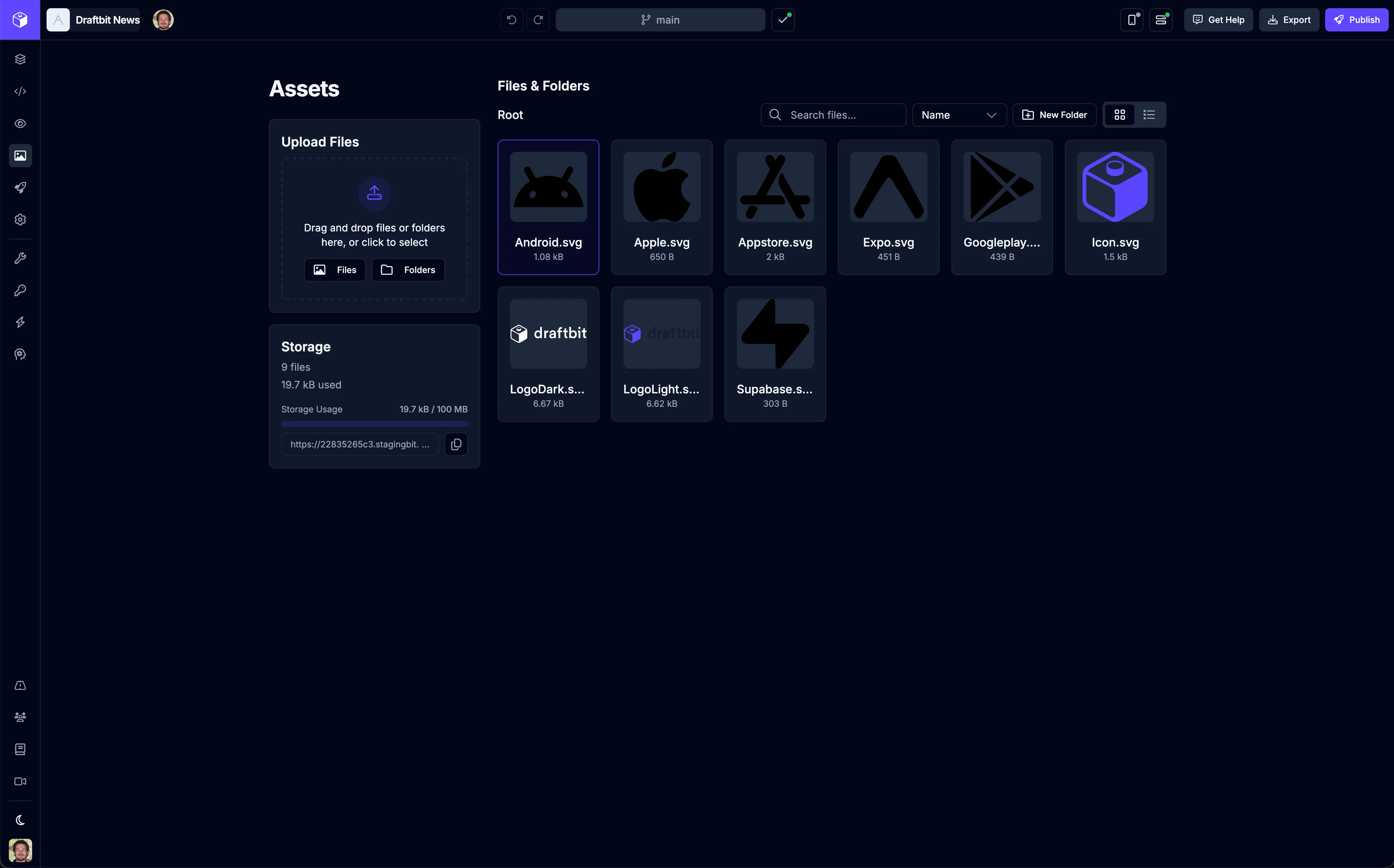
| Icon | Name | Description |
|---|---|---|
 | Search assets | Search your app’s media files. |
 | Reorder assets | Reorder the assets view by Name, Date, Size, and Type. |
 | New folder | Create a new folder to help organize your app’s media files. |
 | List/Grid view | Switch the layout of the assets view between list and grid. |
Upload Files
Section titled “Upload Files”You can drag-and-drop files or folders into the ‘dropzone’ or click one of the buttons to upload Files or Folders. Most media file types are supported.
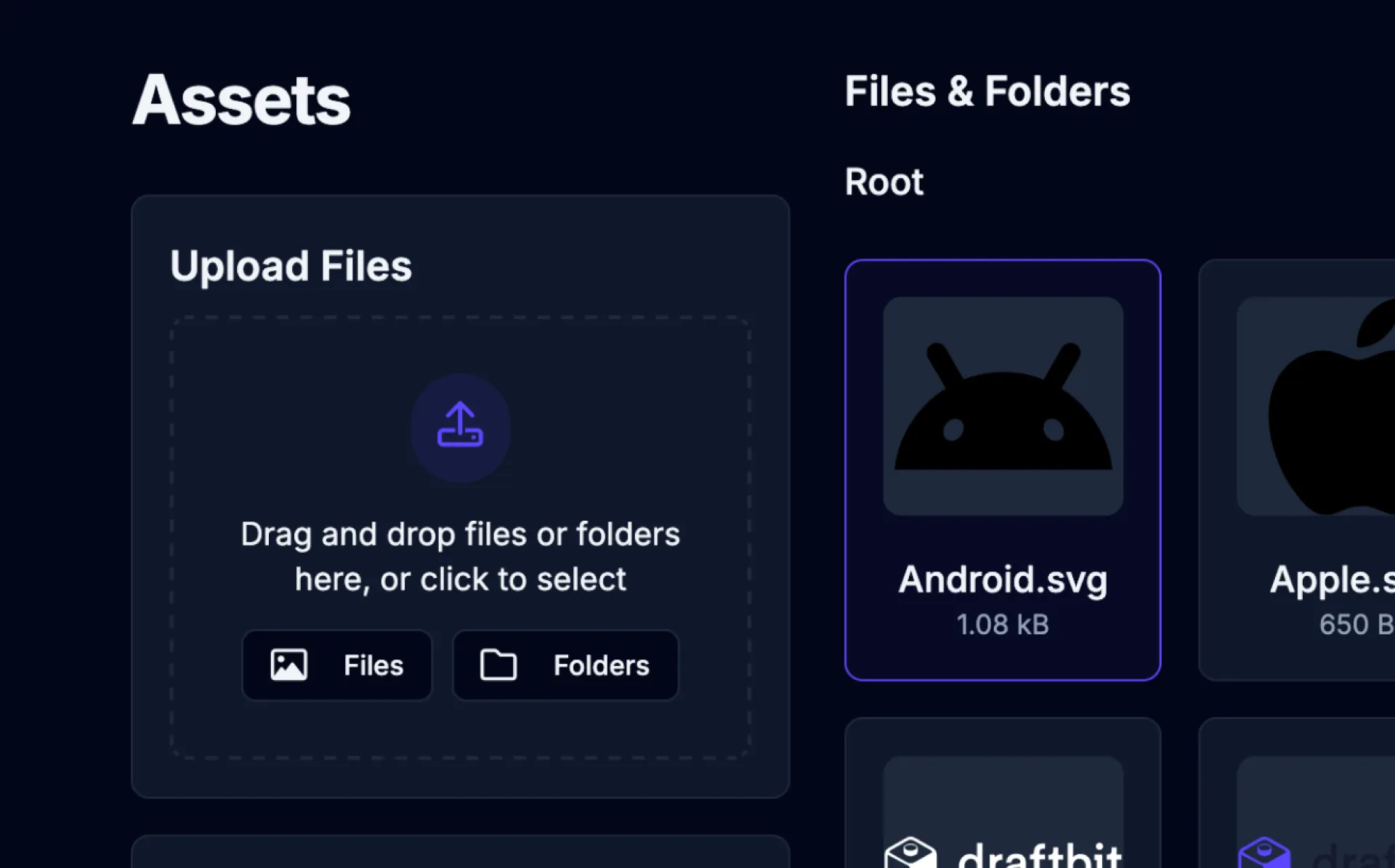
| Icon | Name | Description |
|---|---|---|
 | Upload files | Select individual media files to upload to your assets bucket. |
 | Upload folders | Select folders of media files to upload to your assets bucket. |
Supported file types
Section titled “Supported file types”Below are some of the common supported file types that you can upload to your app’s cloud storage bucket.
| Type | Extensions |
|---|---|
| Image | .png, .jpg, .svg, .webp, .gif, .bmp |
| Video | .mp4, .mov, .mpeg |
| Audio | .mp3, .aac, .ogg, .wav |
| Document | .txt, .csv, .json, .pdf |
Storage Details
Section titled “Storage Details”This section gives you insight into the number of files you’ve uploaded to your app’s cloud storage and the amount of space you have left. You can also copy the URL associated with your assets bucket.
The amount of storage space in you assets bucket and the size of the files you’re allowed to upload will depend on your subscription plan. You can upload almost any type of media file that you need within the size and storage limits of your plan.
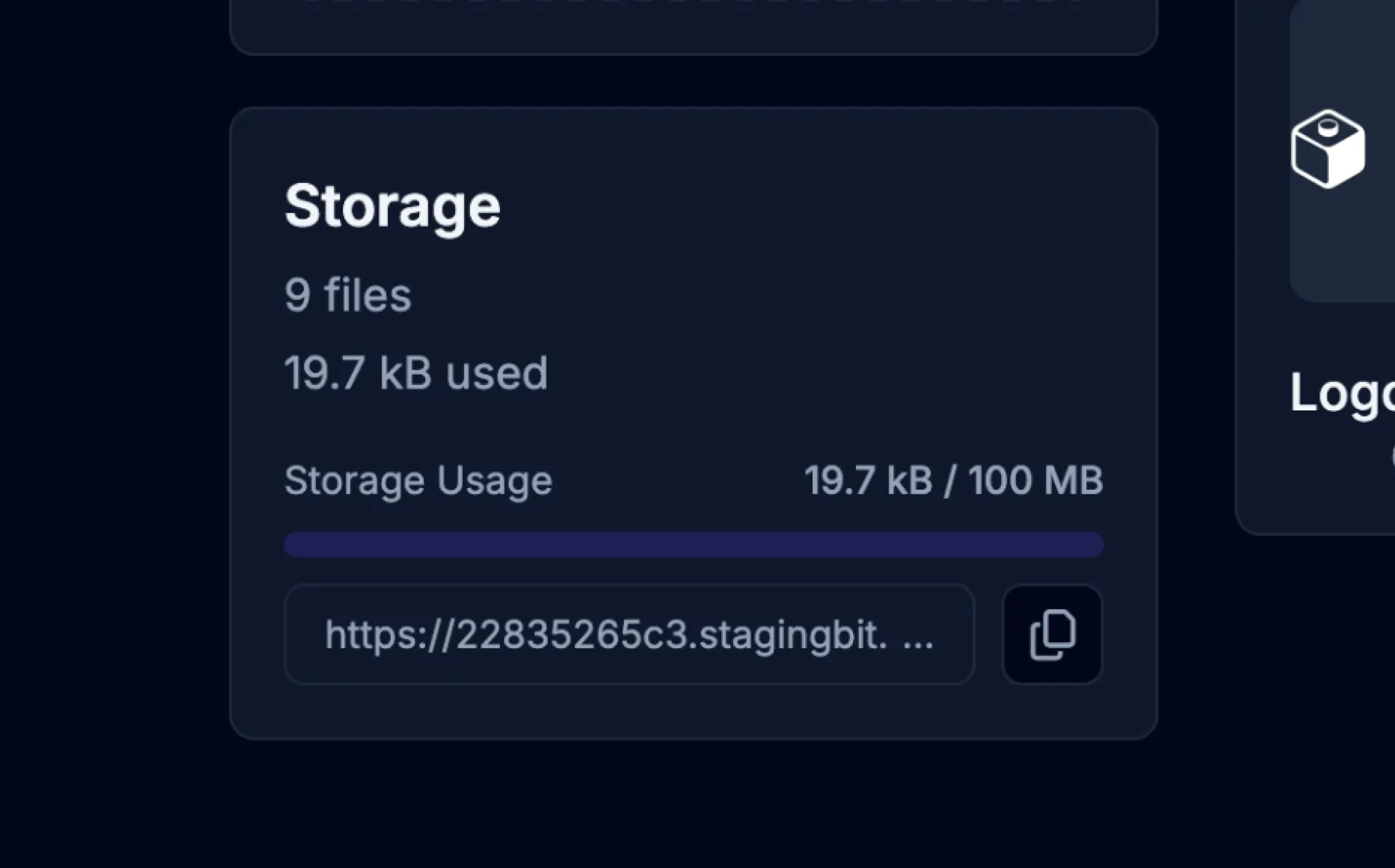
| Icon | Name | Description |
|---|---|---|
 | Copy Bucket URL | Copy the URL for the app’s asset bucket to your clipboard. |